Suppliers
Overview
Screen Type: Maintenance
Screen ID: MAINT-129
The Suppliers screen lists all suppliers that have been defined for a terminal. This screen can be used for most configurations related to suppliers and for creating new supplier records in TMS7. The Suppliers screen also features screen embeds for related screens, such as the Stocks, Customers, Accounts, and Destinations screens. These screen embeds allow you to configure settings that are specific to that supplier relationship, such as customers who receive product from the supplier or destinations the supplier sends products to.
Screen Layouts
To access the Suppliers screen, complete the following:
-
On the TMS7 Home screen, search for 'Suppliers' in the home screen search bar.
-
Select 'Suppliers.'
-
Alternatively, a user can navigate to this screen using the Business menu:
-
Select the Business menu.
-
Select the 'Supplier' sub-menu.
-
Select 'Suppliers.'
-
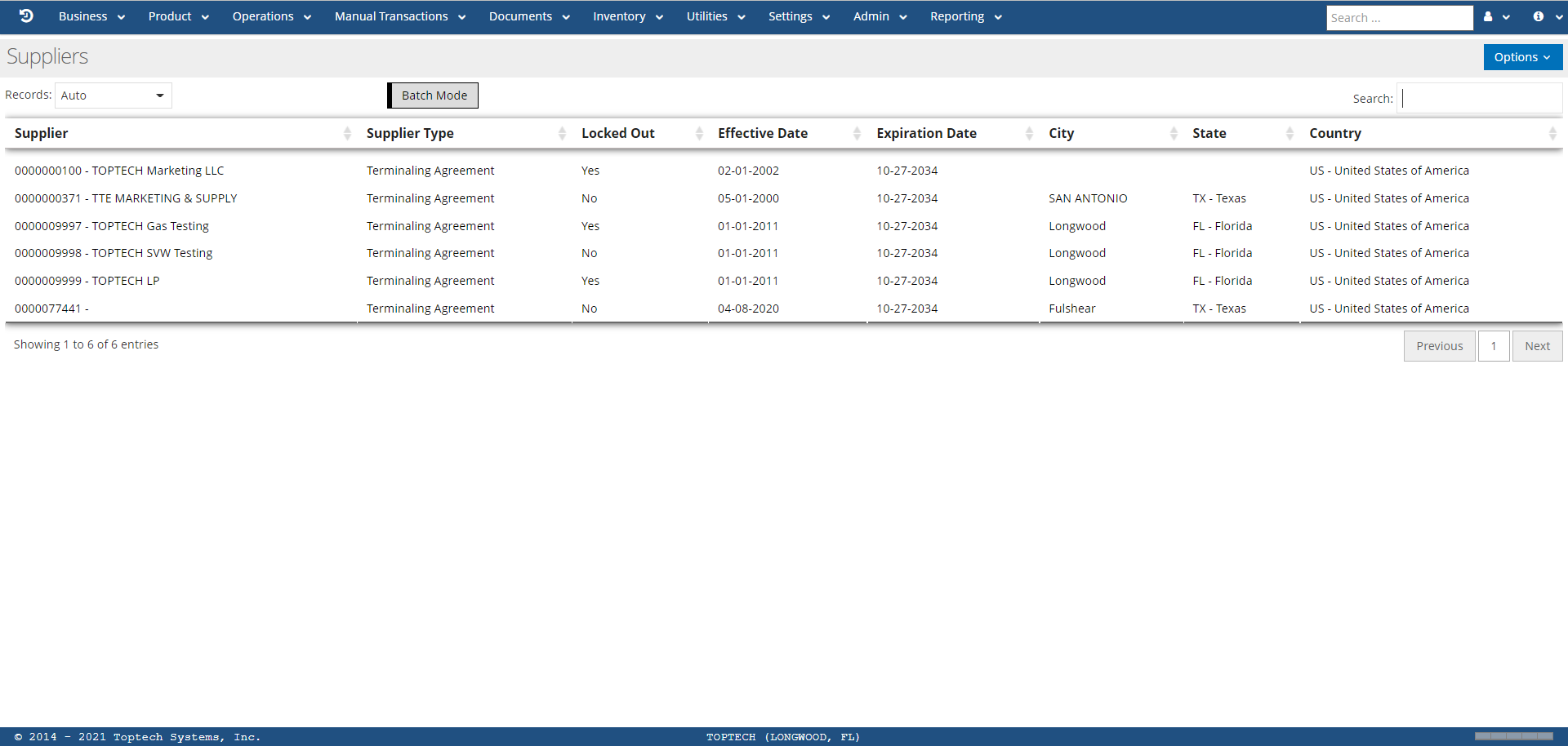
The Suppliers screen will list all supplier records that have been created, identified by the supplier number and supplier name and a variety of configurable columns.
Suppliers: Detail
A user can select any supplier record to access the Suppliers: Detail screen for that supplier, or select 'New' from the 'Options' menu to create a new record. The Detail screen is used to manage configurations for that specific supplier.
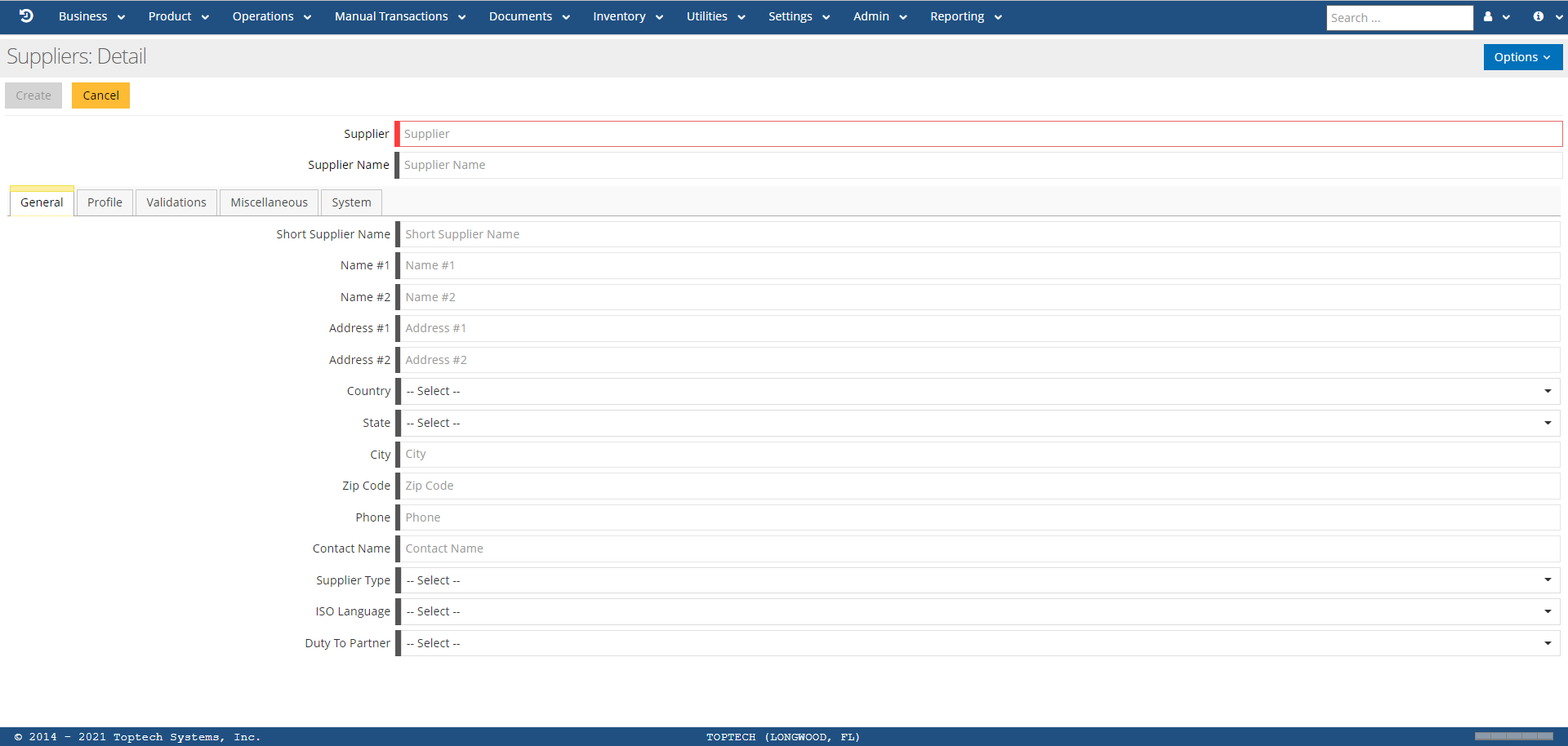
The features of the Suppliers: Detail screen are defined in the table below:
| Feature | Description |
|---|---|
| Options |
The 'Options' menu contains the following features:
|
| Supplier | Enter a unique number for this supplier record (maximum 10-characters). This field cannot be changed after the supplier record has been created. |
| Supplier Name | The name of the supplier. This is the name usually displayed along with the Supplier Number. |
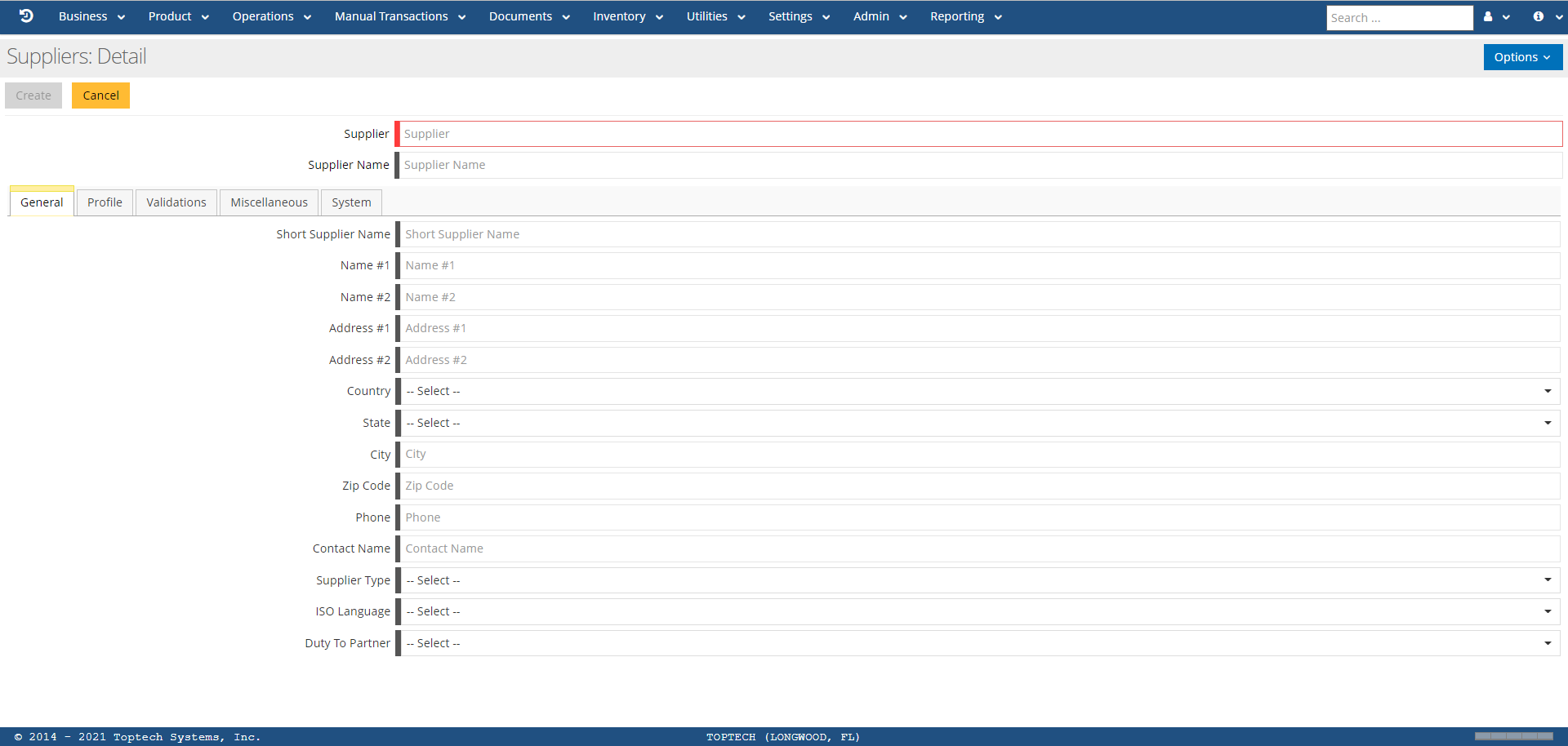
The following sections will define the fields located in each of the configuration tabs for the Suppliers: Detail screen.
General
| Feature | Description |
|---|---|
| Short Supplier Name | The shortened version of the Supplier Name (for example, Supplier Name: TOPTECH Marketing LLC; Short Supplier Name: TOPTECH MK). |
|
Name # 1-2 |
First line of the supplier name as it will appear on the BOL. If needed, Name #2 can be used to add a second Name line to the BOL. |
| Address # 1-2 | The address for where the supplier is located, if applicable. Use as a standard two address line. |
| Country | Select a country from the drop-down menu where the supplier is located. |
| State | Select a state from the drop-down menu where the supplier is located, if in the U.S. |
| City | The city where the supplier is located. |
| Zip Code | The Zip code for the area where the supplier is located. |
| Phone | The phone number associated with the supplier. |
| Contact Name | The name of the primary point of contact for the supplier. |
| Supplier Type |
The type of supplier this supplier will be configured for in TMS7. Options include:
|
| ISO Language | International Standards Organization (ISO) language preferred by the specific supplier. |
| Duty To Partner | Entity that assumes the responsibility for payment of duty/taxes on a movement. |
Profile
| Feature | Description |
|---|---|
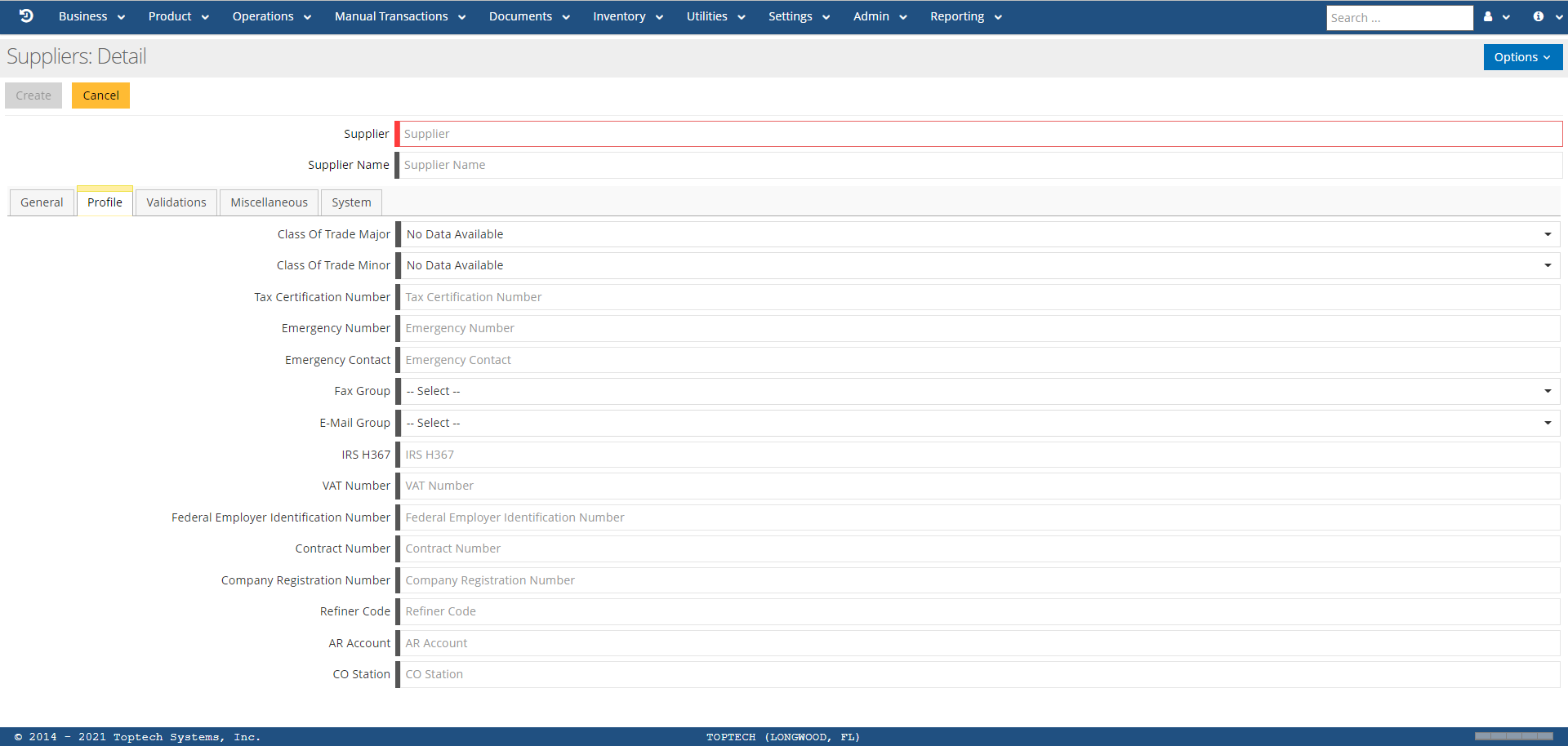
| Class Of Trade Major | Class of Trade Major, if applicable (also known as “channel of trade”). Used primarily for product allocations by class/channel of trade. Classes are defined on the Class of Trade (Major) screen. |
| Class Of Trade Minor | Class of Trade Minor, if applicable (also known as “channel of trade”). Used primarily for product allocations by class of trade. Classes are defined on the Class of Trade (Minor) screen. |
| Tax Certification Number | Tax certification number for this supplier. |
| Emergency Number | Phone number to call in case of an emergency such as a spill/overflow or other hazardous condition requiring the presence and expertise of a third party. |
| Fax Group | The FAX group ID if this supplier is a member of a defined FAX group. |
| E-Mail Group | The E-Mail group ID if this supplier is a member of a defined E-Mail group for receiving reports via email. Groups are defined via the Email Groups screen. |
| IRS H367 | Position holder‘s IRS 637 number that is transmitted via TMS7-Zytax interface for compliance to EXSTARS Tax requirements. |
| VAT Number | Value-Added Tax number that refers to a special, additional premium or luxury tax, referred to as value-added. |
| Federal Employer Identification Number | Federal Employer Identification Number (FEIN) assigned by the IRS to this supplier business entity. Used for taxation purposes. |
| Contract Number | Memo item only to be used by the terminal for data tracking and reporting. This is usually the supply contract number specific to this allocation. |
| Company Registration Number | The registration number of the company that corresponds to the record. |
| Refiner Code | Code assigned by the EPA to indicate the supplier is classified as a "small" refiner. Used as part of the ULSD module. |
| AR Account | The account number of the receivable account. |
| CO Station | The Company Station ID is a number assigned to the service stations that fly the oil companies' flag. These can be dealers, company ops, or jobber stations. It is any retail site that has company assets such as signs and credit card imprinters. |
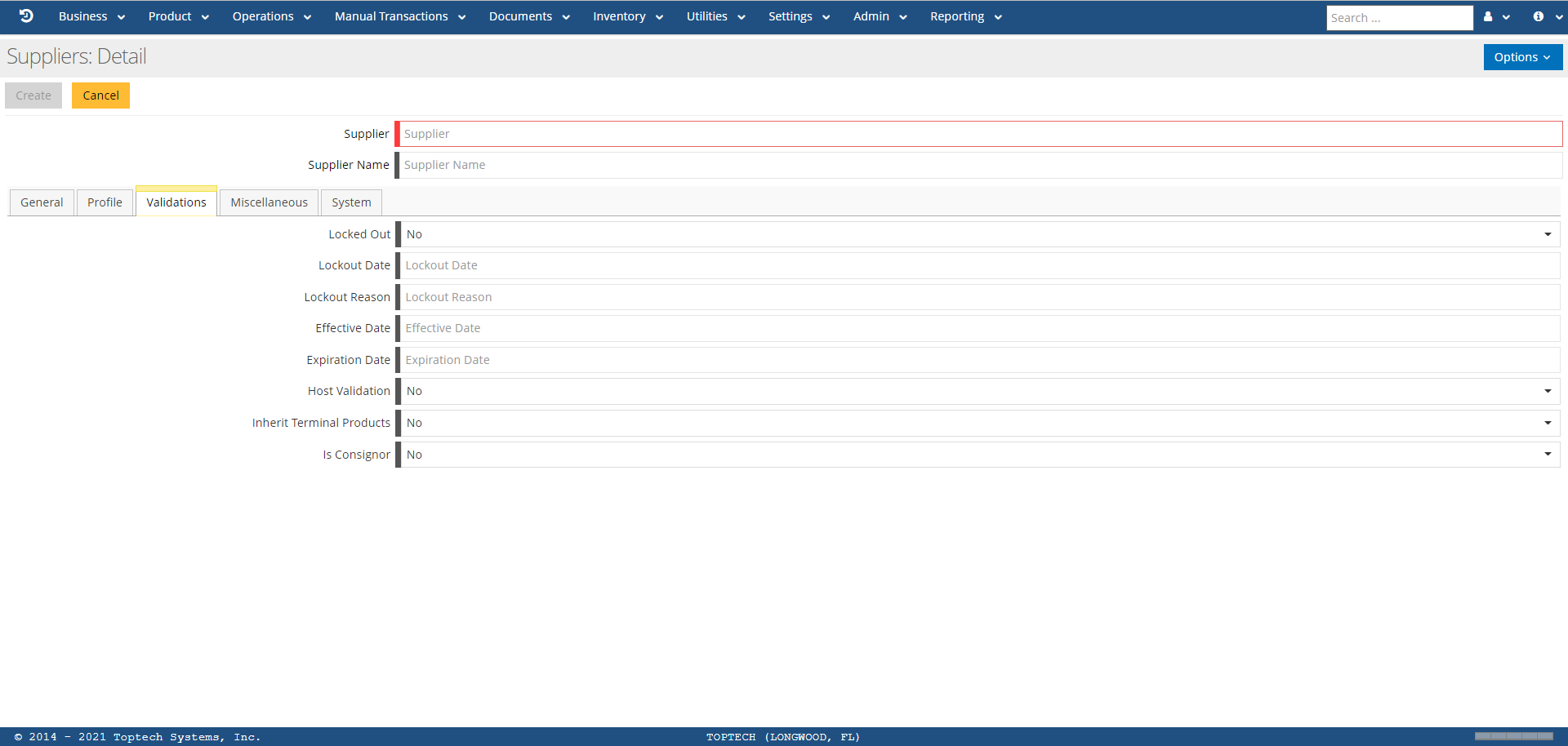
Validations
| Feature | Description |
|---|---|
| Locked Out |
If 'Yes' is selected, this indicates that the supplier is locked out of the terminal and denied access to the terminal's facilities. If 'No' is selected, this indicates normal access and privileges. Operators may use this field to manually override an existing lockout or issue a lockout. |
| Lockout Date |
Date on which this supplier will be (or was) “locked out” from the terminal, meaning that the supplier is not allowed to lift product or use the terminal’s facilities. Criteria for lockout are:
|
| Lockout Reason | Optional comment documenting why the lockout occurred. When a driver selects a locked out supplier via an RCU device, a “Locked Out” message will display on the RCU. |
| Effective Date | The date on which this supplier record is officially in effect, usually the date on which it is created. This field is a calendar-select with mm/dd/yyyy format. |
| Expiration Date | The date on which this supplier’s relationship with the terminal will expire. If this date is not known or not necessary, enter 12/31/2049 to indicate that the relationship is indefinite. This field is a calendar-select with mm/dd/yyyy format. |
| Host Validation |
If 'Yes' is selected, this indicates that a Host system (such as TopHAT) is validating this supplier before authorizing loads. If 'No' is selected, this indicates that a Host system is not validating this supplier prior to authorizing loading. |
| Inherit Terminal Products |
If 'Yes' is selected, this indicates that all products authorized at the Terminal level will be authorized for this supplier as well. This means that any authorized products defined on the Supplier Products screen will be superseded by the terminal’s authorized products. If 'No' is selected, this indicates that this supplier’s set of authorized products is defined on the Supplier Products screen exclusively. |
| Is Consignor |
If 'Yes' is selected, this indicates that this entity will be printed in the "Consignor" section of the BOL. If 'No' is selected, this indicates that this entity will NOT be printed on the “Consignor” section of the BOL. |
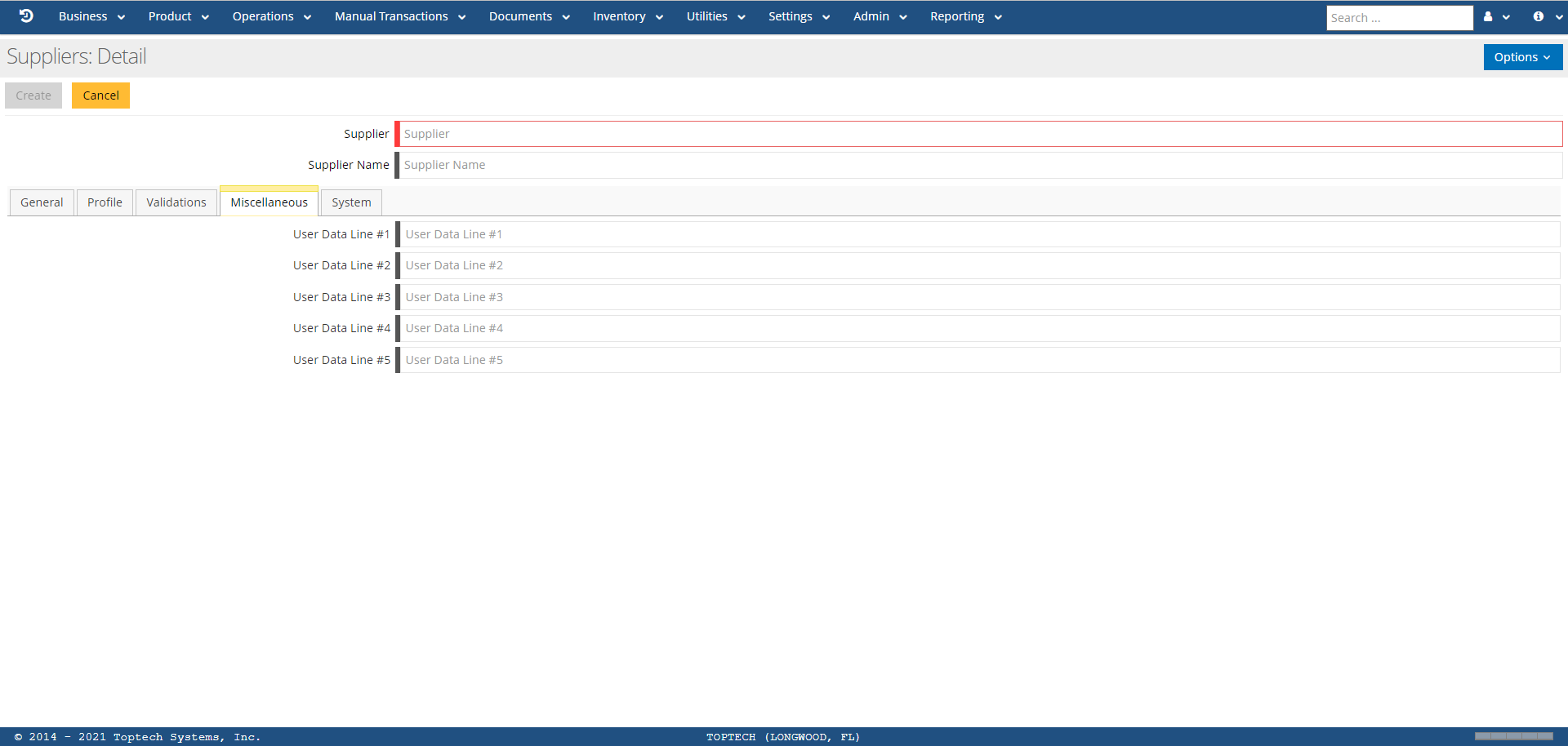
Miscellaneous
| Feature | Description |
|---|---|
| User Data Line # 1-5 | Free-form text associated with this supplier that is typically used for custom BOLs or interfaces. The labels can be customized and then the BOL can be customized to reference these fields, or custom processing can be triggered based on the fields’ value. |
Supplier Loading Type Screen Embed
This tab is a screen embed of the Supplier Loading Type screen, allowing a user to define loading types for this specific supplier. For more information, see Loading Types.
Supplier Configuration Screen Embed
This tab is a screen embed of the Supplier Configuration screen, allowing a user to configure settings for this screen through the Suppliers master screen.
Supplier EDI Screen Embed
This tab is a screen embed of the Supplier EDI screen, allowing a user to configure settings for EDI functions for this specific supplier. For more information, see EDI Screens.
Supplier Products Screen Embed
This tab is a screen embed of the Supplier Products screen, allowing a user to manage authorized products for this specific supplier. For more information, see Authorized Products.
Add Supplier Products Screen Embed
This tab is a screen embed allowing you to easily add a new authorized product for this supplier. Products must first be defined via the Products screen before they can be added as an authorized product.
Stock Screen Embed
This tab is a screen embed of the Stock screen, allowing a user to configure settings for any stock specific to this supplier through the Suppliers master screen. For more information, see Stocks.
Customer Screen Embed
This tab is a screen embed of the Customers screen, allowing a user to configure settings for customers specific to this supplier. For more information, see Customers.
Account Screen Embed
This tab is a screen embed of the Accounts screen, allowing a user to configure settings for accounts specific to this supplier. For more information, see Accounts.
Destination Screen Embed
This tab is a screen embed of the Destinations screen, allowing a user to configure settings for destinations specific to this supplier. For more information, see Destinations.