Products
Overview
Screen Type: Maintenance
Screen ID: MAINT-010
The Products screen is used to create records for all products (including base products, saleable products, dyes, and additives) at use at the terminal. This screen allows you to define the physical properties of the product, special considerations related to product handling and storage, product recipe, and more. All products that are in use at a terminal must have a product record defined in order to be accounted for properly in TMS7. This screen can be considered a master screen for all configurations related to products.
Screen Layout
To access the Products screen, complete the following:
-
On the TMS7 Home screen, search for 'Products' in the home screen search bar.
-
Select 'Products.'
-
Alternatively, a user can navigate to this screen using the Product menu:
-
Select the Product menu.
-
Select 'Products.'
-
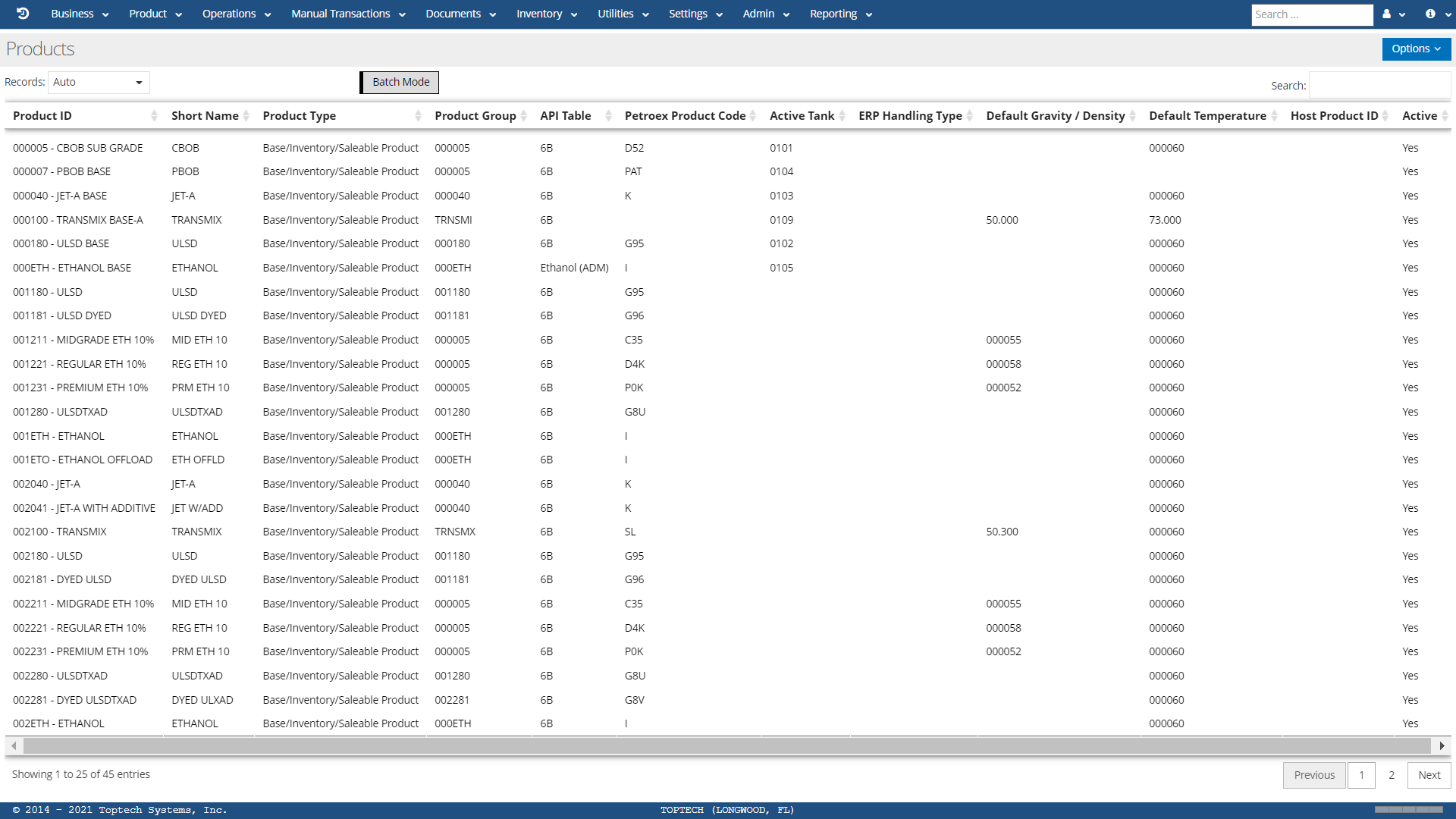
The Products screen will list all products that have been created (including base products, additives, dyes, saleable products, etc.), identified by product ID and product short name, as well as a variety of configurable columns.
Products: Detail
A user can select any product record to view the Products: Detail screen for that record, or select 'New' from the options menu to create a new record. The Detail screen contains the configuration settings and product recipe tab for defining products.
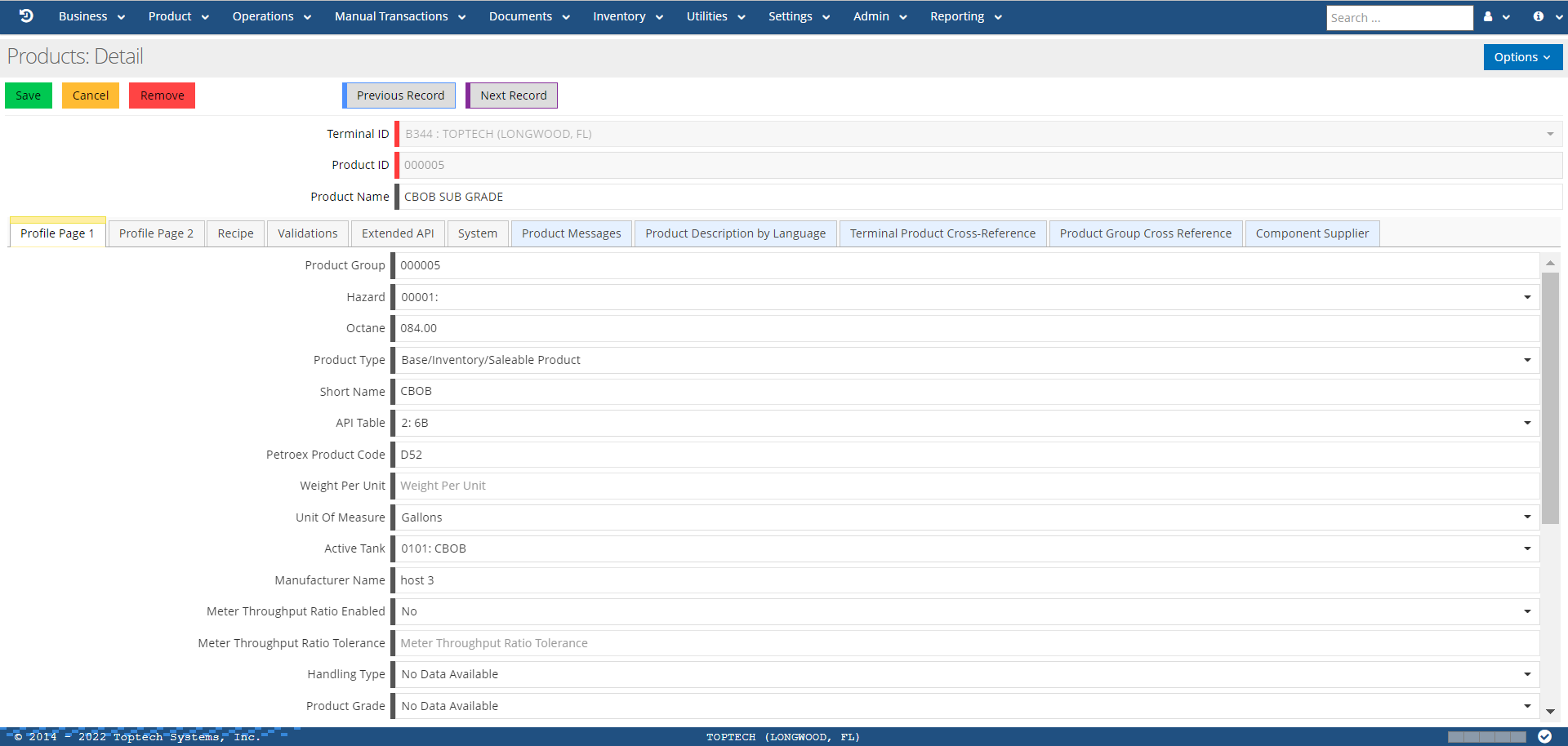
The features of the Products: Detail screen are defined in the table below:
| Feature | Description |
|---|---|
| Options |
The 'Options' menu contains the following features: Clone Record Record Change History Show Optional Fields |
| Terminal Identification | Select a terminal from the drop-down menu. |
| Product ID | Enter a unique product ID number. This number must be 6 characters long and can be alphanumeric. |
| Product Name | Enter a product name to describe the product. This name typically appears alongside the Product ID. |
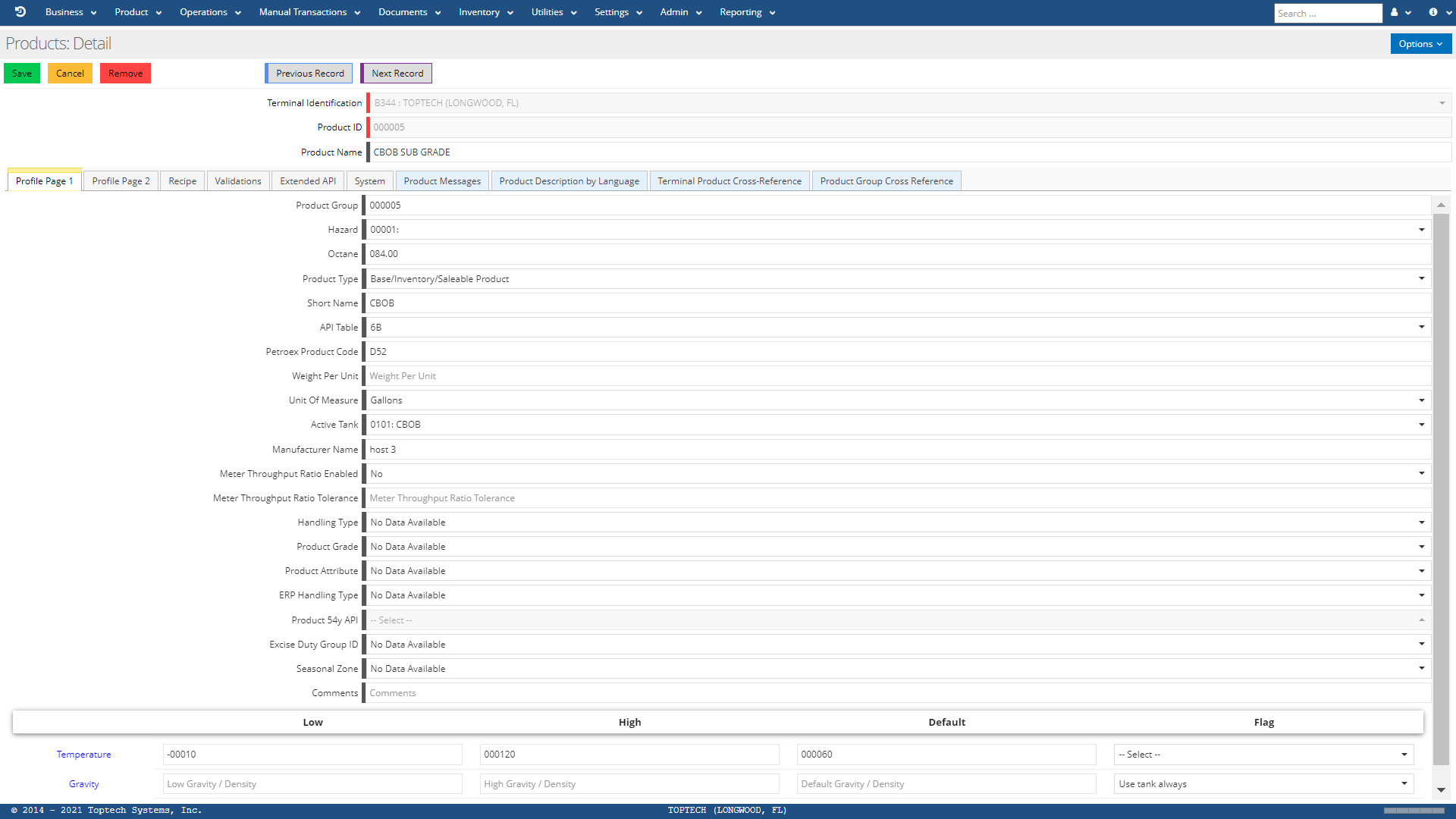
Profile Page 1
| Feature | Description |
|---|---|
| Product Group | A unique user-defined code that identifies a group of related products, for example Gasoline, Kerosene, Diesel, etc. The main purpose for Product Groups is the capability to allocate products by Product Group rather than being limited to individual product allocations. This number must be 6 characters long and can be alphanumeric. |
| Hazard | The Hazard Message code assigned to a specific product. This field assigns which Hazard Message will be printed on the BOL when the product is loaded. These codes are defined via the Hazard Messages screen. |
| Octane | The octane value that corresponds to a product entered in the format: 999.99 |
| Product Type |
Select a product type from the drop-down menu. Product types include:
|
| Short Name | Enter an abbreviated name of the full product name. For example, Product Name: JET-A WITH ADDITIVE; Product Short Name: JET-A W/ADD. |
| API Table | Select an API table from the drop-down menu. The API table define the method for computing the net volume (or weight) from the gross net volume (or weight). API tables are imported into TMS7 by Toptech. |
| Petroex Product Code | The number assigned in PETROEX that identifies the Product Code for EDI transmissions. PETROEX (Petroleum Product Exchange System) is an EDI system that collects bill of lading and bulk custody data on completed product exchange transactions and transfers them to a corporate host system. |
| Weight Per Unit | The weight of the product that corresponds to the specified unit of measure (4-decimal precision). |
| Unit of Measure |
Select a UOM from the drop-down menu. If no unit is selected, the UOM will default to the UOM selected in the Terminal profile. Units include:
|
| Active Tank | Select a tank from the drop-down menu if one has been configured to store this product. Tanks are defined via the Tanks screen. |
| Manufacturer Name | Enter the name of the company who manufactures the product. |
| Meter Throughput Ratio Enabled |
If 'Yes' is selected, this enables the checking of metered throughput of this product with tmsmeter and tmsfolio. This prevents the folio from closing if this exceeds the tolerance. If 'No' is selected, this feature is disabled. |
| Meter Throughput Ratio Tolerance | If Meter Throughput Ratio is enabled, enter a throughput tolerance (up to 5 characters). |
| Handling Type | Special 2-character code related to excise duty, usually defined in a global ERP system such as SAP. |
| Product Grade | A code that distinguishes different grades or types of diesel based on sulfur content (measured in parts per million - ppm) for the purposes of ULSD reporting to the EPA. |
| Product Attribute | A code that defines any attribute or characteristic relevant to the products used in a specific Terminal. |
| ERP Handling Type | Enterprise Resource Planning (ERP) Handling Type. Defines excise usage and fiscal status of a product, which can affect printed documents. |
| Product 54y API | If this product is a 54y API product, select the product ID from the drop-down menu. You can view API 54y products via the API 54y Products screen. |
| Excise Group ID | The Excise Duty Group ID for this product. |
| Seasonal Zone | Geographic region of a territory or country to which this product belongs. Theoretically, there could be multiple Products with the same Host Product #, which have difference Saleable Product codes based on the Seasonal Zone for that area of the country. |
| Comments | Free-form text box that allows a user to enter any comments related to this product. |
| Temperature |
Low - Enter the lowest temperature this product is allowed to safely reach. High - Enter the highest temperature this product is allowed to safely reach. Default - Enter the default (normal) temperature of the product. Flag - Select an option for regulating product temperature readings. Options include:
|
| Gravity |
Low - Enter the lowest gravity/density this product can reach. High - Enter the highest gravity/density this product can reach. Default - Enter the default (normal) gravity/density for this product. Flag - Select an option for regulating product gravity/density readings. Options include:
|
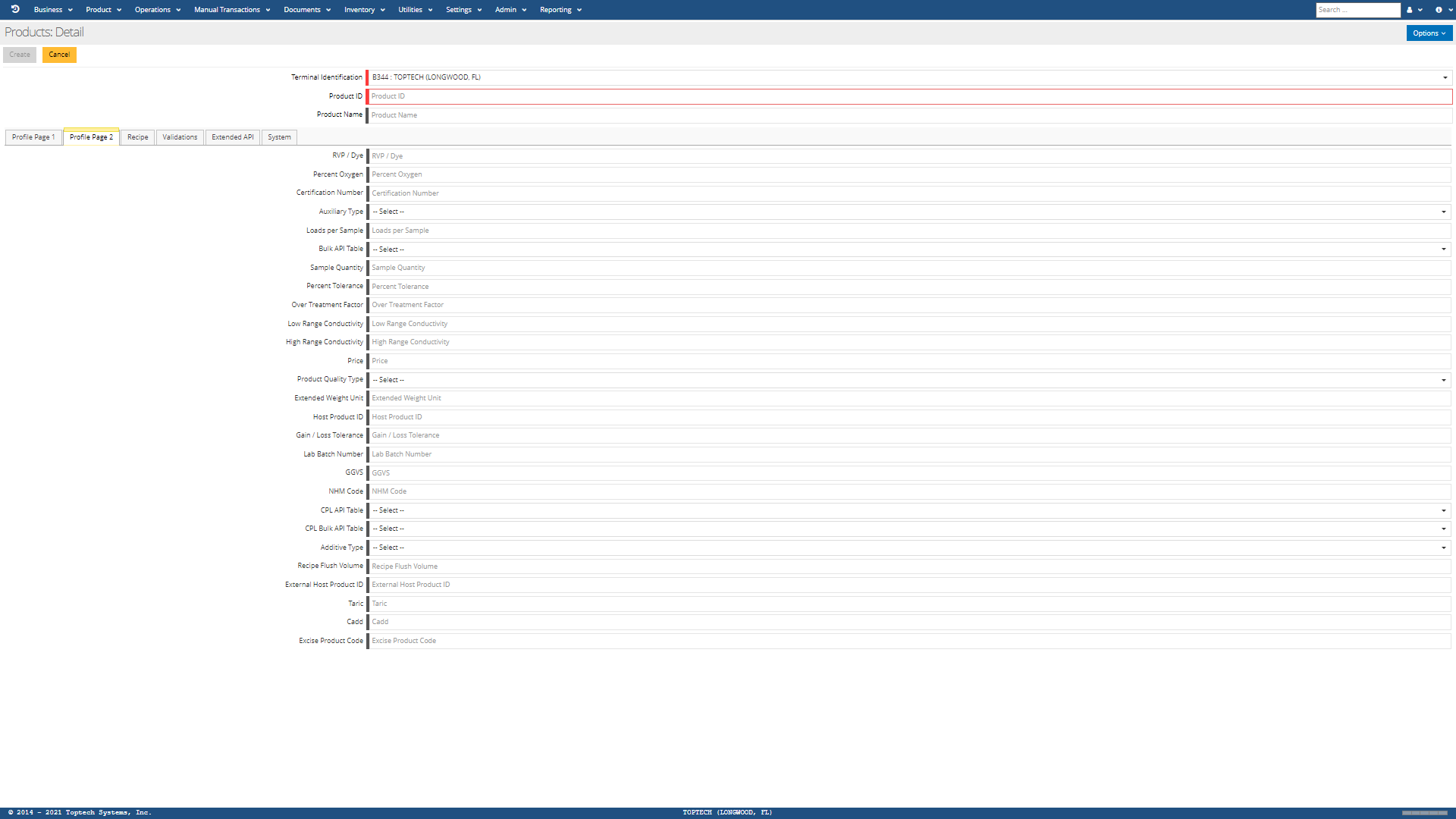
Profile Page 2
| Feature | Description |
|---|---|
| RVP/Dye |
This field is used in two ways, depending on the type of product being configured. If configuring a base/inventory/saleable product, enter the Reid Vapor Pressure in this field (in nn.n format). If configuring a dye, enter the Base Injection Rate (BIR) in this field (in nn.n format). |
| Percent Oxygen | Enter the percent oxygen (by weight) of the product in question (in nn.nnn format). |
| Certification Number | Additive/Product Certification Number for the current product. |
| Auxiliary Type |
Auxiliary Product Type. This field enables processing for Gas products. If no special processing is required, leave this field blank. Valid Auxiliary Types:
|
| Loads per Sample | Determines how many loads can be transacted before a new sample must be taken. |
| Bulk API Table | This field is used to display/modify the API table used with the current product. If the transaction code for the transaction is a Bulk transaction then this field is used instead of the default API table. If this field is blank, then the default API table that is assigned to the product is used. |
| Sample Quantity | The amount of product that is pulled from the vehicle or each compartment and used for sampling the product. Customer Specific programs access this field as needed. This field is not validated by standard TMS. |
| Percent Tolerance | Enter the allowable percentage tolerance of meeting product specification. If product is below tolerance percentage, an alarm condition will occur and a warning message will display on the RCU. |
| Over Treatment Factor | For use with downloading additive information to a preset or smart injector. All additives for this saleable product will be "overtreated" by the percentage specified here. For example: If the component percentage of additive is 0.05300 on this record and the Overtreat field is set to 02%, then the component percentage of additive will be increased by this percentage to 0.05406. This new percentage will be used to calculate the downloaded value to the device (percentage, pacing rate and/or cylinder size). |
| Low Range Conductivity | The low range value for conductivity used in testing the saleable product for conductivity. |
| High Range Conductivity | The high range value for conductivity used in testing the saleable product for conductivity. |
| Price | Product Price per unit of measure. |
| Product Quality Type |
Select a product quality code from the drop-down menu. Quality codes must first be defined via the Product Quality screen. The Product Quality feature provides a high degree of confidence that a loaded product meets all expected specifications. When this feature is turned on, TMS7 checks for a certain set of out-of-spec criteria whenever a product is being loaded. The out-of-spec criteria include: No Additive, Additive (too) High/Low, Blend (too) High/Low, Temperature out of range, and Gravity out of range. If any of these conditions are detected, you can specify how you want to handle them by configuring options on the Product Quality screen. |
| Extended Weight Unit | Extended Weight per Unit value. This field is used when a greater decimal precision is needed beyond that provided by the Weight Per Unit field on Profile pg 1. The Weight Per Unit field has a maximum 4 decimal precision, whereas the Extended Weight Unit field has a maximum 6 decimal precision. TMS will check for a value in this field and override the Weight Per Unit field if a value is found. |
| Host Product ID | Product code used in the Host system or the ERP (Enterprise Resource Planning) system (i.e., SAP, JDE, etc.) |
| Gain/Loss Tolerance | Please contact Toptech for more information on this field. |
| Lab Batch Number | Official Laboratory/Batch # for this Product. Used on Regulatory Documents, on occasion. |
| GGVS | Please contact Toptech for more information on this field. |
| NHM Code | Please contact Toptech for more information on this field. |
| CPL API Table | User-defined Non-Bulk API table for Volume correction for Pressure (as opposed to Temperature). This is the Correction for the effect of Pressure on Liquid. |
| CPL Bulk API Table | User-defined Bulk API table for Volume correction for Pressure (as opposed to Temperature). This is the Correction for the effect of Pressure on Liquid. |
| Additive Type |
Select the additive type from the drop-down menu, if applicable. Options include:
|
| Recipe Flush Volume | Please contact Toptech for more information on this field. |
| External Host Product ID | If this product has a different ID in the Host system, enter that ID in this field. |
| Taric | Please contact Toptech for more information on this field. |
| Cadd | Please contact Toptech for more information on this field. |
| Excise Product Code | Enter a 6-character excise product code. |
Recipe
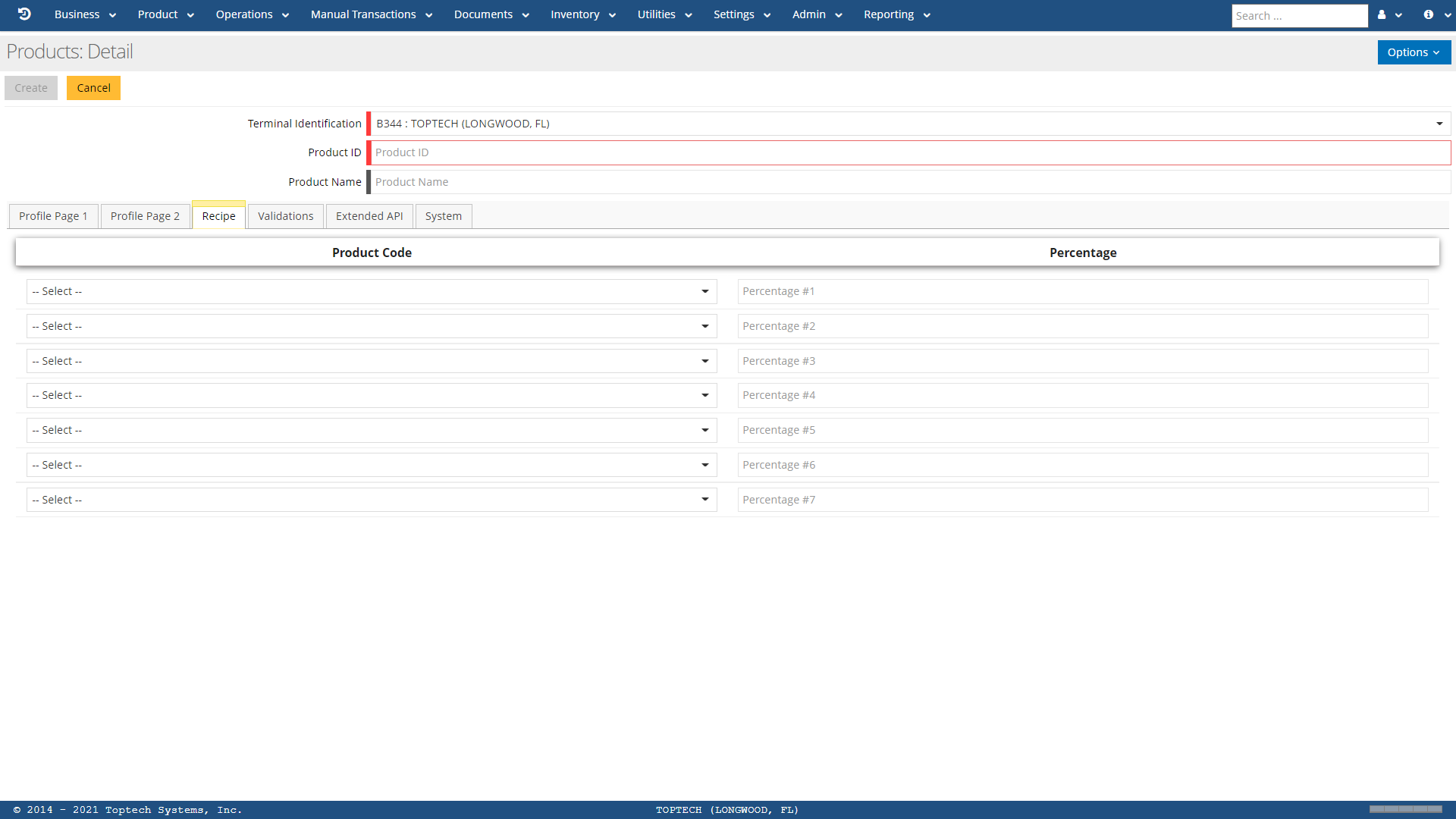
The recipe tab is used to define the product(s) and percentage of products in any given product recipe. A product could be made of 100% of itself (or a base product), or it could be a recipe blend of up to 7 base products or additives that total up to 100%.
| Feature | Description |
|---|---|
| Product Code | Select a product from the drop-down menu. Products must be defined before they can be selected to be included in a new product recipe. |
| Percentage | Enter what percentage of the selected product will be in the final product recipe. All recipes must add up to 100%. TMS7 will display an error message if the total percentage of the recipe exceeds 100%. |
Validations
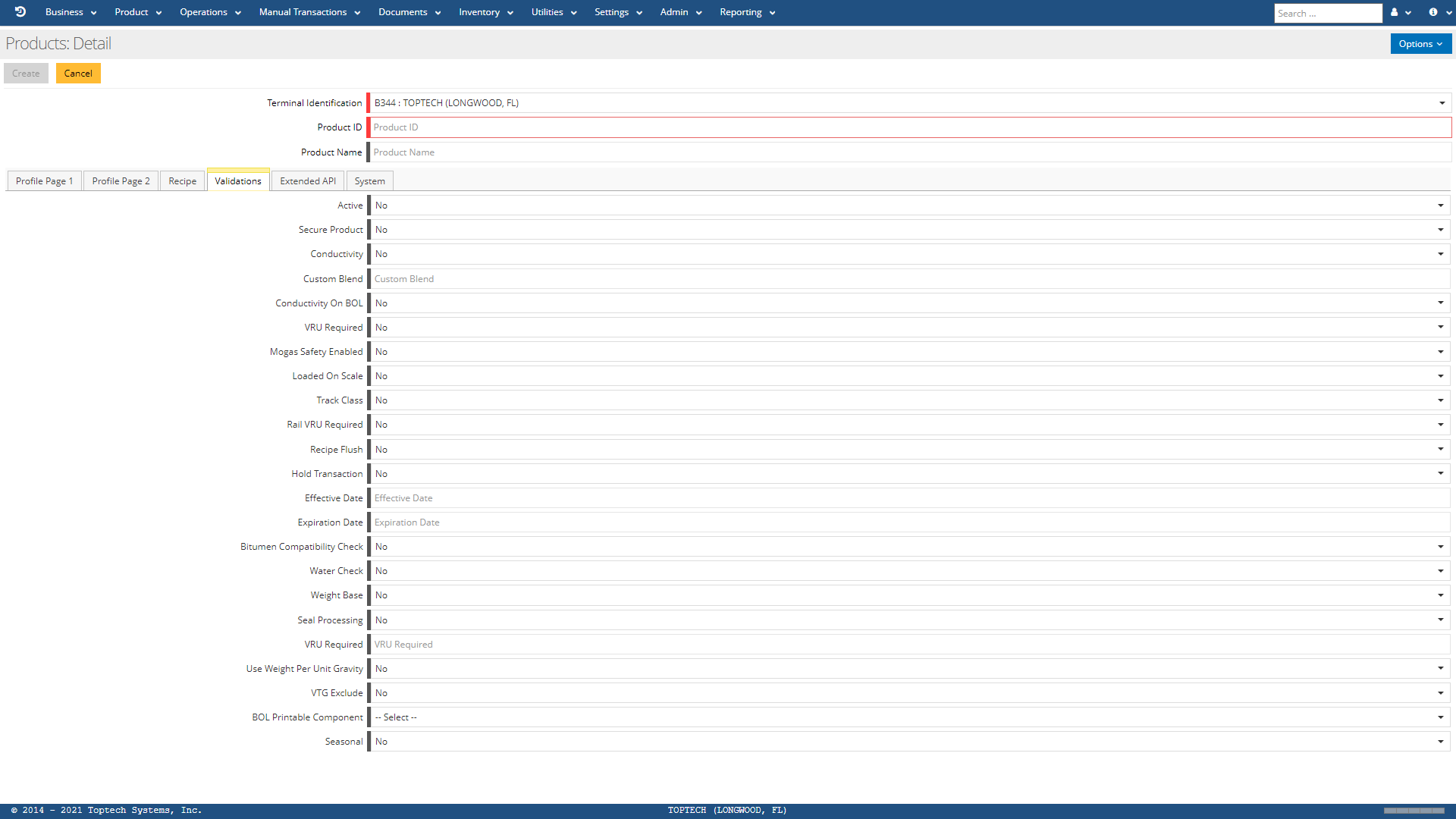
| Feature | Description |
|---|---|
| Active |
If 'Yes' is selected, this indicates the product recipe is active and can be selected for loading or blending. If 'No' is selected, this indicates the product is disabled and cannot be selected for loading or blending. |
| Secure Product |
If 'Yes' is selected, this indicates a driver will be prompted to enter a PIN at the RCU in order to load this product. If 'No' is selected, this indicates no PIN is required by the driver in order to load this product. |
| Conductivity |
If 'Yes' is selected, this indicates that conductivity information is required for this product. If 'No' is selected, this indicates that conductivity information is not required. |
| Custom Blend | Please contact Toptech for more information on this field. |
| Conductivity On BOL |
If 'Yes' is selected, this indicates that conductivity information for this product will be printed on the BOL. If 'No' is selected, this indicates that conductivity information will not be included on the BOL. |
| VRU Required | Indicates if VRU (Vapor recovery unit) is required. Recovers the "gases" that are displaced during loading, re-condenses them into liquid and adds them into a designated tank. Must be running for loading to occur or the vapors could be off-gassed to the environment. |
| Mogas Safety Enabled |
Mogas Safety refers to the special safety considerations that must be made for mobile gasoline. If 'Yes' is selected, this indicates that Mogas safety considerations are required. If 'No' is selected, this indicates that Mogas safety considerations are not needed. |
| Loaded On Scale | Please contact Toptech for more information on this field. |
| Track Class | Please contact Toptech for more information on this field. |
| Rail VRU Required | Please contact Toptech for more information on this field. |
| Recipe Flush | This field tells an Accuload which product is the flush product. It indicates that the last base product defined in the recipe is the flush product. This field works with sequential and ratio blending. |
| Hold Transaction | Please contact Toptech for more information on this field. |
| Effective Date | The date on which this product is in effect and can be loaded, typically the day the record was created. This field is a calendar-select with mm/dd/yyyy format. |
| Expiration Date | The date on which the product record will expire. If this date is not known or not necessary, enter 12/31/2049 to indicate that the authorization is indefinite. This field is a calendar-select with mm/dd/yyyy format. |
| Bitumen Compatibility Check | Please contact Toptech for more information on this field. |
| Water Check | Please contact Toptech for more information on this field. |
| Weight Base | Please contact Toptech for more information on this field. |
| Seal Processing | Please contact Toptech for more information on this field. |
| VRU Required | Please contact Toptech for more information on this field. |
| Use Weight Per Unit Gravity | Please contact Toptech for more information on this field. |
| VTG Exclude | Please contact Toptech for more information on this field. |
| BOL Printable Component |
Allows a user to define what component/additive information is printed on the BOL. Options include: Always print additives/this additive on BOL Disable printing additives/this component/additive Print enabled additives/Enable this component/addt |
| Seasonal | Indicates if the product is part of a defined seasonal zone. |
Extended API
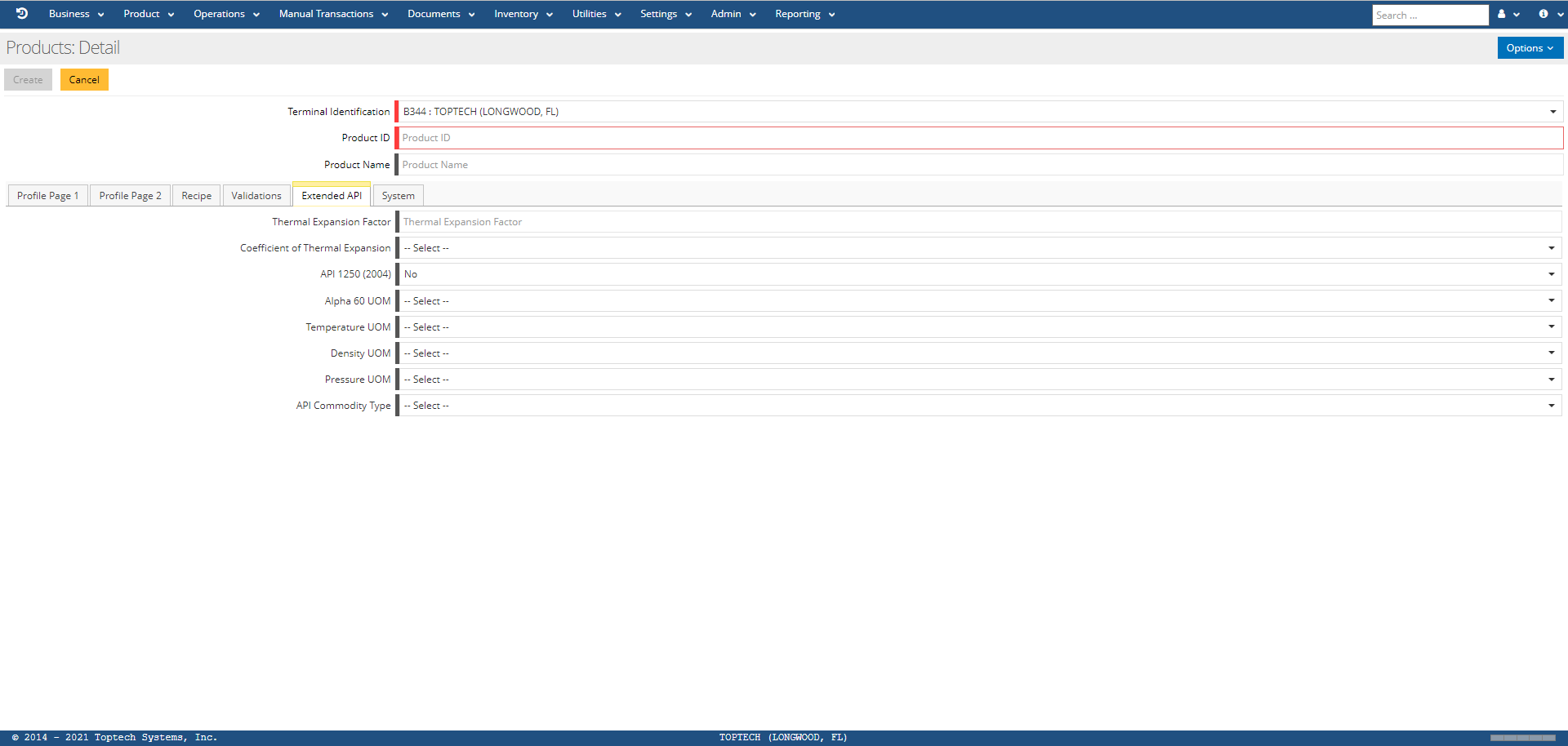
The Extended API tab allows a user to define settings in addition to the specifications the product has according to the defined API table.
| Feature | Description |
|---|---|
| Thermal Expansion Factor | Enter the Thermal Expansion Factor for this product record. This field is 8- characters and has a free-floating decimal point, meaning the user can insert the decimal character anywhere in the field. |
| Coefficient of Thermal Expansion |
Coefficient of Thermal Expansion. A low CTE means that the product has a low tendency to expand when heated. Options include:
|
| API 1250 (2004) |
This field is used to determine the VCF. Please refer to the 1250-04 API Standard for supported tables with the use of this option. If 'Yes' is selected, this indicates that 1250-04 API processing for this product is enabled. If 'No' is selected, this indicates 1250-04 API will not be used for processing. |
| Alpha 60 UOM |
Select a UOM. Options include:
|
| Temperature UOM |
Select a temperature UOM. Options include:
|
| Density UOM |
Select a density UOM. Options include:
|
| Pressure UOM |
Select a pressure UOM. Options include:
|
| API Commodity Type |
Select what type (if any) of commodity this product is. Options include:
|
Product Messages Screen Embed
This tab is a screen embed of the Product Messages screen, allowing a user to configure up to 10 sets of product messages for additional comments related to the product. For more information, see Product Messages.
Product Description by Language Screen Embed
This tab is a screen embed of the Product Description by Language screen, allowing a user to configure special descriptions for the product in any of the available ISO languages in TMS7. For more information, see Product Description by Language.
Product Description by Language
Overview
Screen Type: Maintenance
Screen ID: MAINT-095
The Product Description by Language screen allows a user to define descriptions of products in any of the ISO languages that are currently available in TMS7. Each record provides two 72-character description fields.
Screen Layout
To access the Product Description by Language screen, complete the following:
-
On the TMS7 Home screen, search for 'Product Description by Language' in the home screen search bar.
-
Select 'Product Description by Language.'
-
Alternatively, a user can navigate to this screen using the Product menu:
-
Select the Product menu.
-
Select 'Product Description by Language.'
-
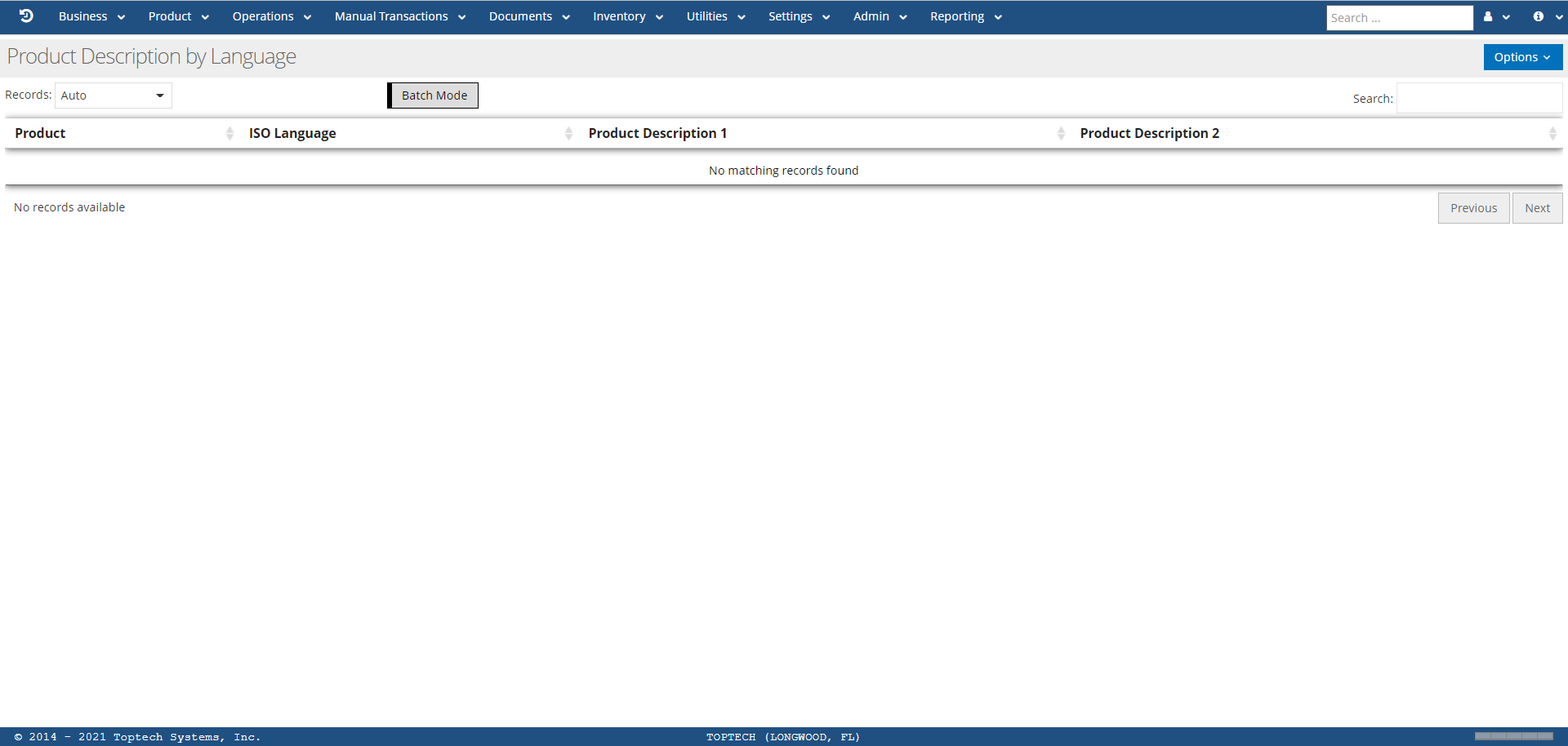
The Product Description by Language screen will list any product description records that have been created, identified primarily by the product ID and ISO language.
Product Description by Language: Detail
A user can select any record to view the Product Description by Language: Detail screen for that record, or select 'New' from the 'Options' menu to create a new record. A user can configure up to two lines of description per product in the chosen ISO language.
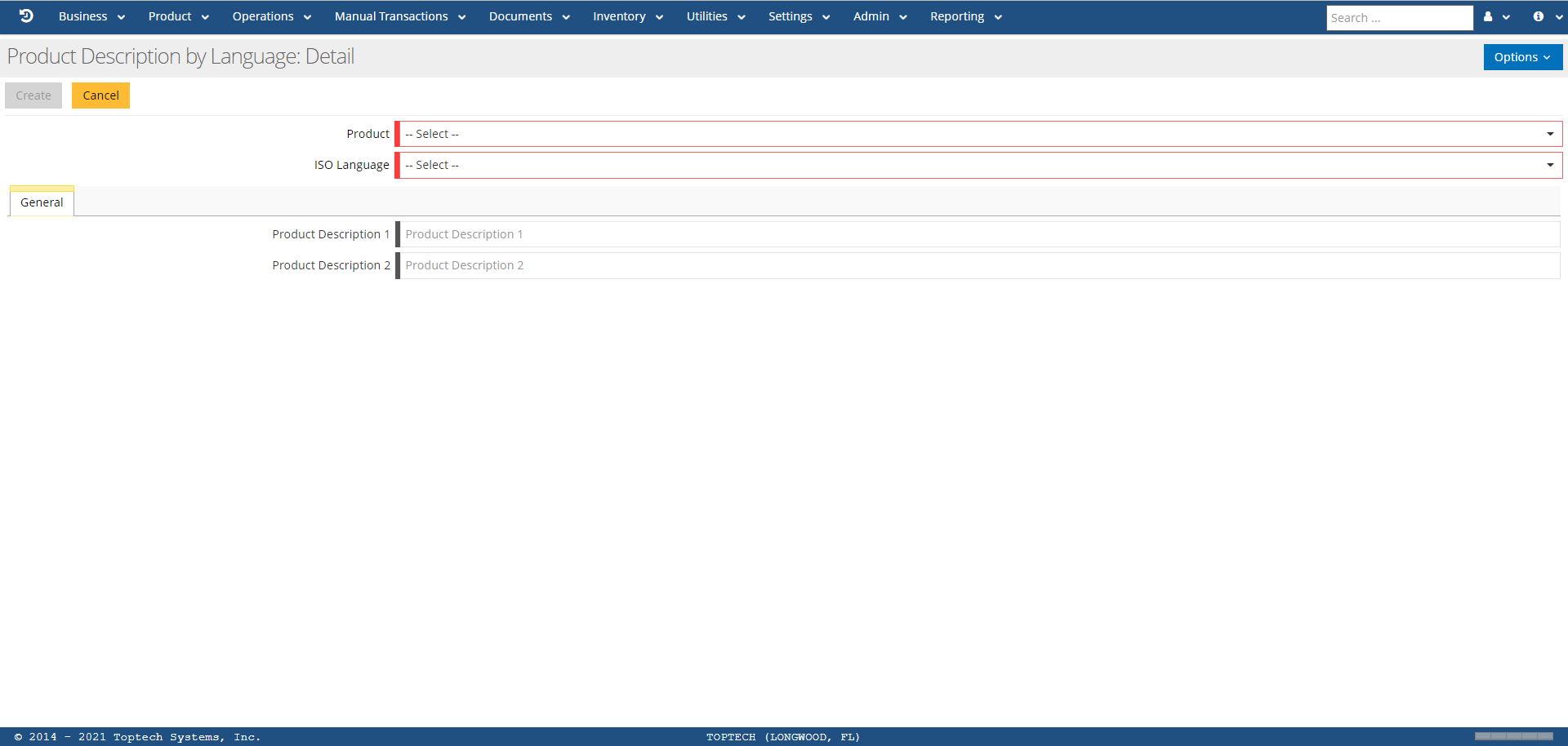
The features of the Product Description by Language: Detail screen are defined in the table below:
| Feature | Description |
|---|---|
| Options |
The 'Options' menu contains the following features:
|
| Product | Select a product ID from the drop-down menu. Products must first be defined via the Products screen. |
| ISO Language | Select the ISO Language from the drop-down menu that the product descriptions will be written in. |
| Product Description 1 | Free-form text box to write a description/comment for the product (up to 72 characters). |
| Product Description 2 | Additional free-form text box to write a description/comment for the product (up to 72 characters). |
Product Group Description
Overview
Screen Type: Maintenance
Screen ID: MAINT-096
The Product Group Description screen is used to define product group codes for related products. The main purpose for product groups is for allocation of products by product group rather than being limited to individual product allocations. Once a product group code is defined on this screen, the code can be assigned to a product via the Products screen.
Screen Layout
To access the Product Group Description screen, complete the following:
-
On the TMS7 Home screen, search for 'Product Group Description' in the home screen search bar.
-
Select 'Product Group Description.'
-
Alternatively, a user can navigate to this screen using the Product menu:
-
Select the Product menu.
-
Select 'Product Group Description.'
-
The Product Group Description screen will list all group codes that have been created, identified by the group code and group name/descriptor, as well as a variety of configurable columns.
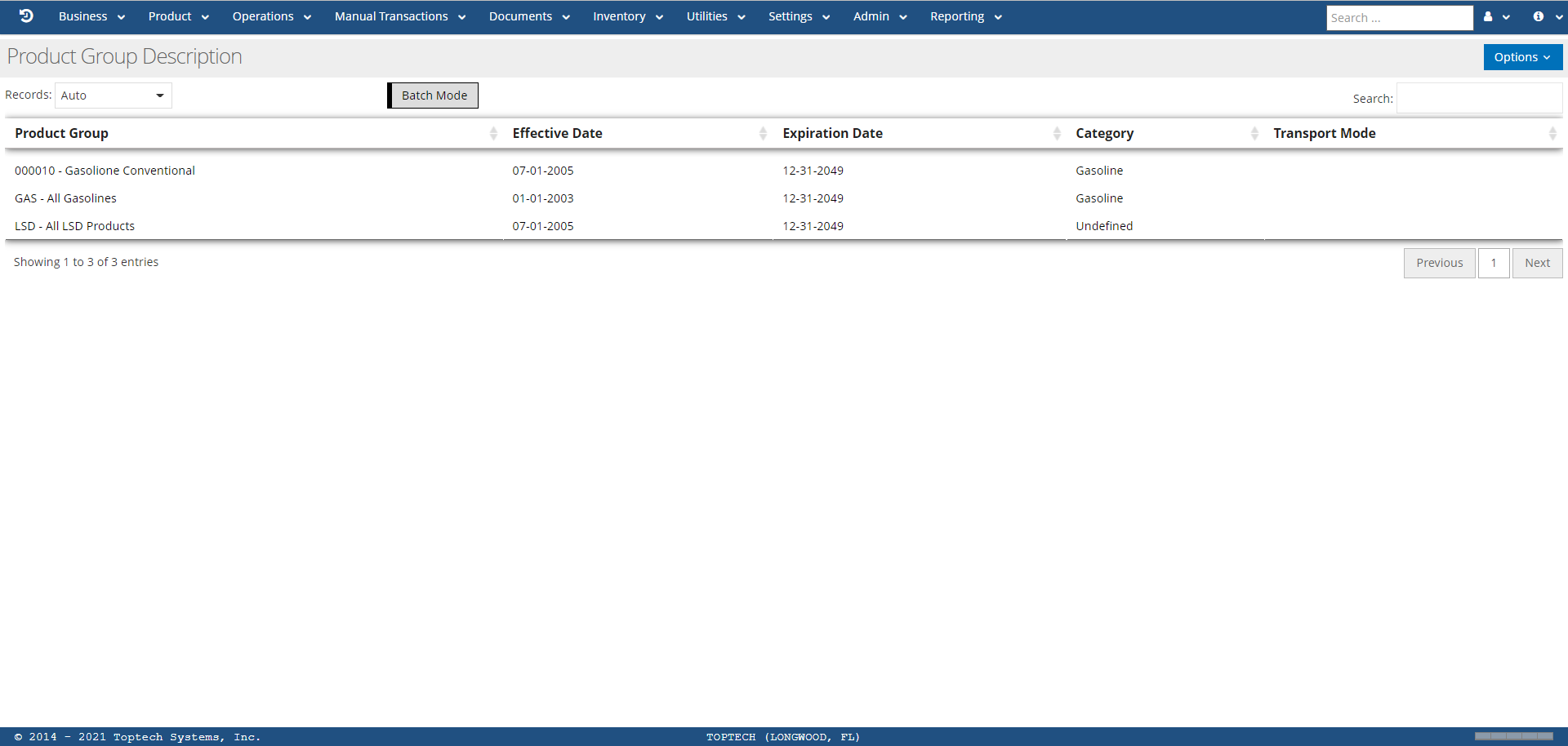
Product Group Description: Detail
A user can select any record to view the Product Group Description: Detail screen for that group, or select 'New' from the 'Options' menu to create a new product group code. A user can configure group settings from the Detail screen.
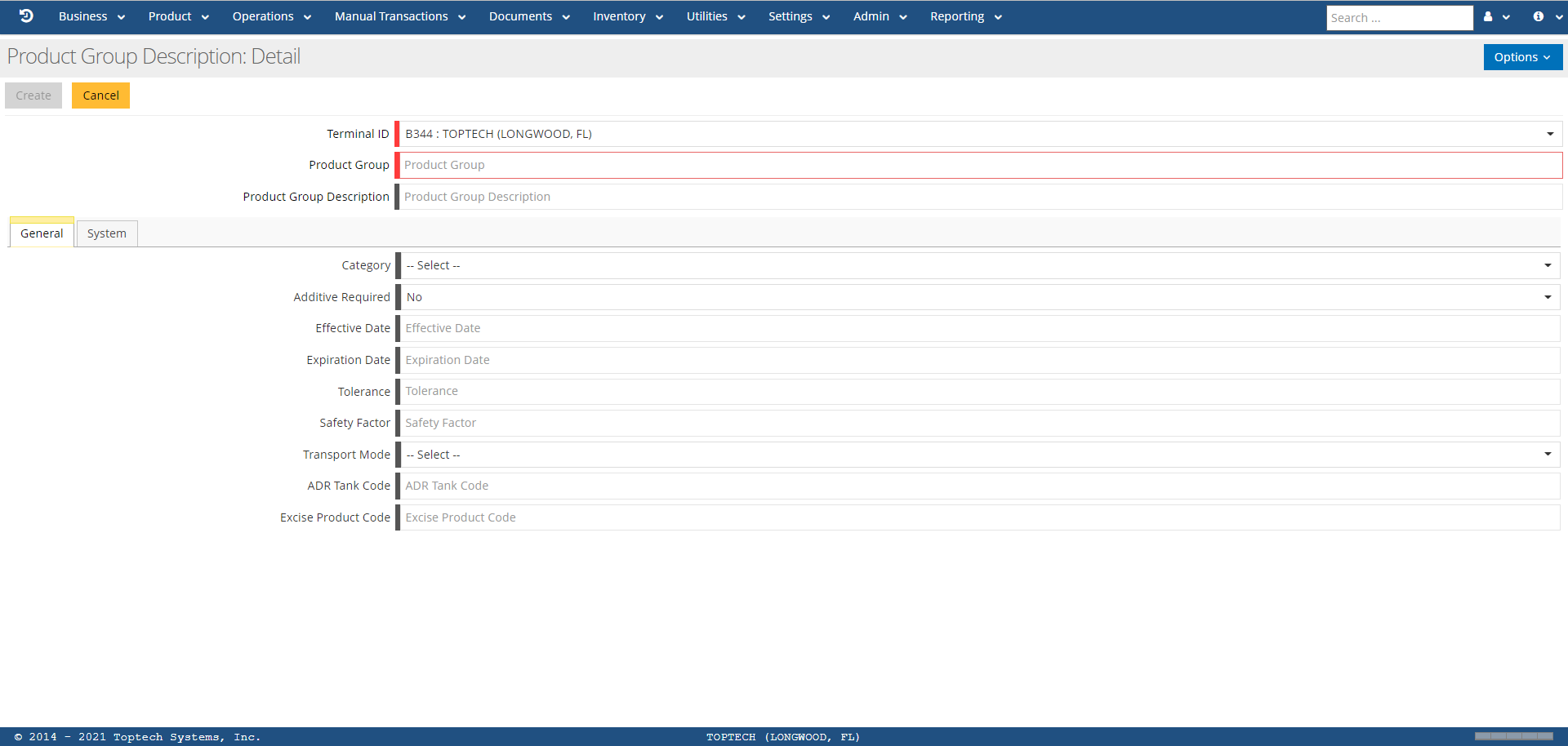
The features of the Product Group Description: Detail screen are defined in the table below:
| Feature | Description |
|---|---|
| Options |
The 'Options' menu contains the following features:
|
| Terminal ID | Select the terminal from the drop-down menu where this product group will be in effect. |
| Product Group | Enter a unique alphanumeric code (maximum 6 characters) for this product group. Note that this field cannot be changed after the record has been created. |
| Product Group Description | Enter either a name or descriptor that helps to identify what this product group is (for example, if creating a product group for all gasoline products a user might enter 'All Gasolines'). |
| Category |
Select a category that best matches the type of products that will be assigned to this product group. Options include:
|
| Additive Required |
If 'Yes' is selected, this indicates that products in this group require an additive. If 'No' is selected, this indicates that products in this group do not require an additive. |
| Effective Date | The date on which the product group is in effect, typically the day the record was created. This field is a calendar-select with mm/dd/yyyy format. |
| Expiration Date | The date on which the product group will expire. If this date is not known or not necessary, enter 12/31/2049 to indicate that the active status is indefinite. This field is a calendar-select with mm/dd/yyyy format. |
| Tolerance | Enter the tolerance for products in this group. |
| Safety Factor | Enter the safety factor for products in this group. |
| Transport Mode |
Select the transport mode that is used for all products in this group, if applicable. Options include:
|
| ADR Tank Code | Enter the ADR Tank Code (Used for EMCS only). |
| Excise Product Code | Enter an excise code for this product group. |
Product Messages
Overview
Screen Type: Maintenance
Screen ID: MAINT-223
The Product Messages screen is used to configure text that will appear on a BOL for a specific product. A user can define a record with up to 10 product messages for a defined product in TMS7. In addition, every product can have up to 10 records (or 10 different sets of product messages) defined. These descriptor lines could be used to define special requirements, product notes, or any other information a terminal wants to include about that product on the BOL.
Screen Layout
To access the Product Messages screen, complete the following:
-
On the TMS7 Home screen, search for 'Product Messages' in the home screen search bar.
-
Select 'Product Messages.'
-
Alternatively, a user can navigate to this screen using the Product menu:
-
Select the Product menu.
-
Select 'Product Messages.'
-
The Product Message screen will list records for all products that have had product BOL messages defined for that product, identified by product ID.
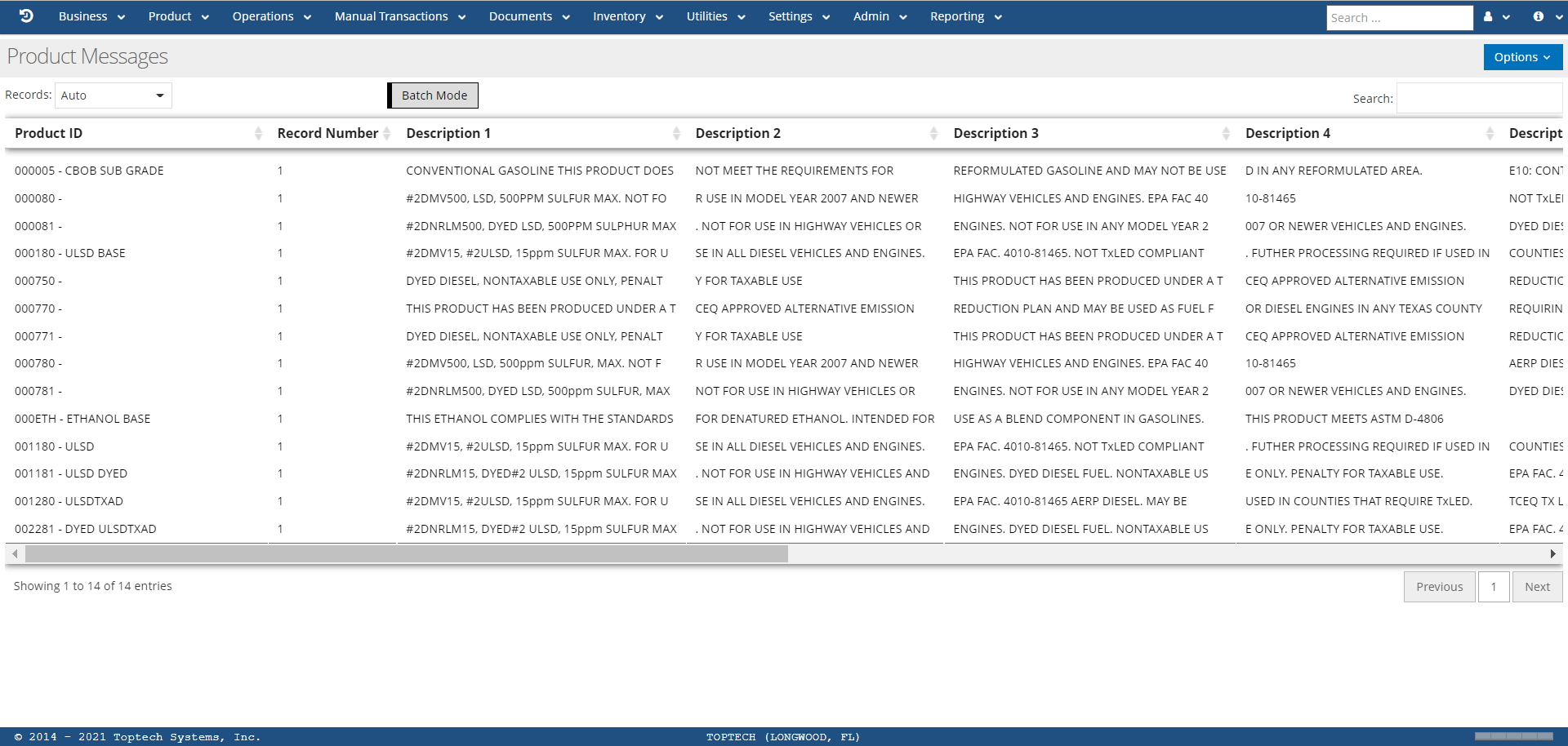
Product Messages: Detail
A user can select any record to view the Product Messages: Detail screen for that record, or select 'New' from the 'Options' menu to create a new record. From the Detail screen, a user can define up to 10 descriptions for each product.
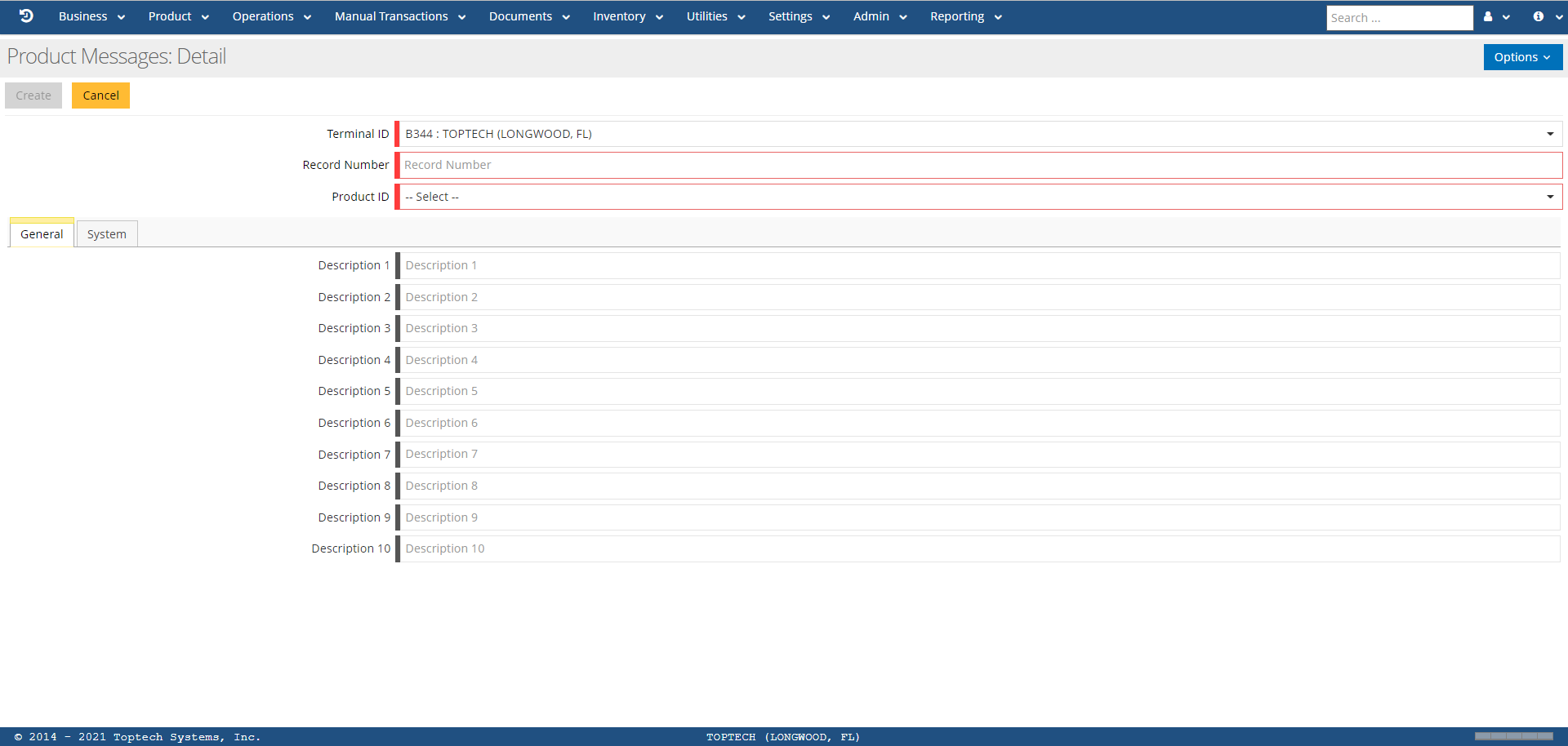
The features of the Product Messages: Detail screen are defined in the table below:
| Feature | Description |
|---|---|
| Options |
The 'Options' menu contains the following features:
|
| Terminal ID | Select a terminal from the drop-down menu. |
| Record | Enter a number (0-9) for this specific product record; every product can have up to 10 records. |
| Product ID | Select a product from the drop-down menu. Products must already be defined via the Products screen. |
| Description 1 -10 | Free-form text boxes where a user can enter any messages related to the product that they want to have appear on the BOL (maximum 40 characters per field). |
Product Quality
Overview
Screen Type: Maintenance
Screen ID: MAINT-099
Product quality in TMS7 refers to a product's compliance to its defined recipe when being loaded. The Product Quality feature provides a high degree of confidence that a loaded product meets all expected specifications. When this feature is enabled, TMS7 checks for certain out-of-spec criteria whenever a product is being authorized to load. The out-of-spec criteria include:
-
No Additive
-
Additive Too High or Too Low
-
Blend component percentage Too High or Too Low
-
Temperature out of Range
-
Gravity out of Range
The Product Quality screen is used to define 2-character product quality type codes that can then be assigned to products via the 'Product Quality Type' field on the Products: Detail screen for that product. Up to 100 different quality criteria records can be created (00-99).
Screen Layout
To access the Product Quality screen, complete the following:
-
On the TMS7 Home screen, search for 'Product Quality' in the home screen search bar.
-
Select 'Product Quality.'
-
Alternatively, a user can navigate to this screen using the Product menu:
-
Select the Product menu.
-
Select 'Product Quality.'
-
The Product Quality screen will list all product quality codes that have been configured.
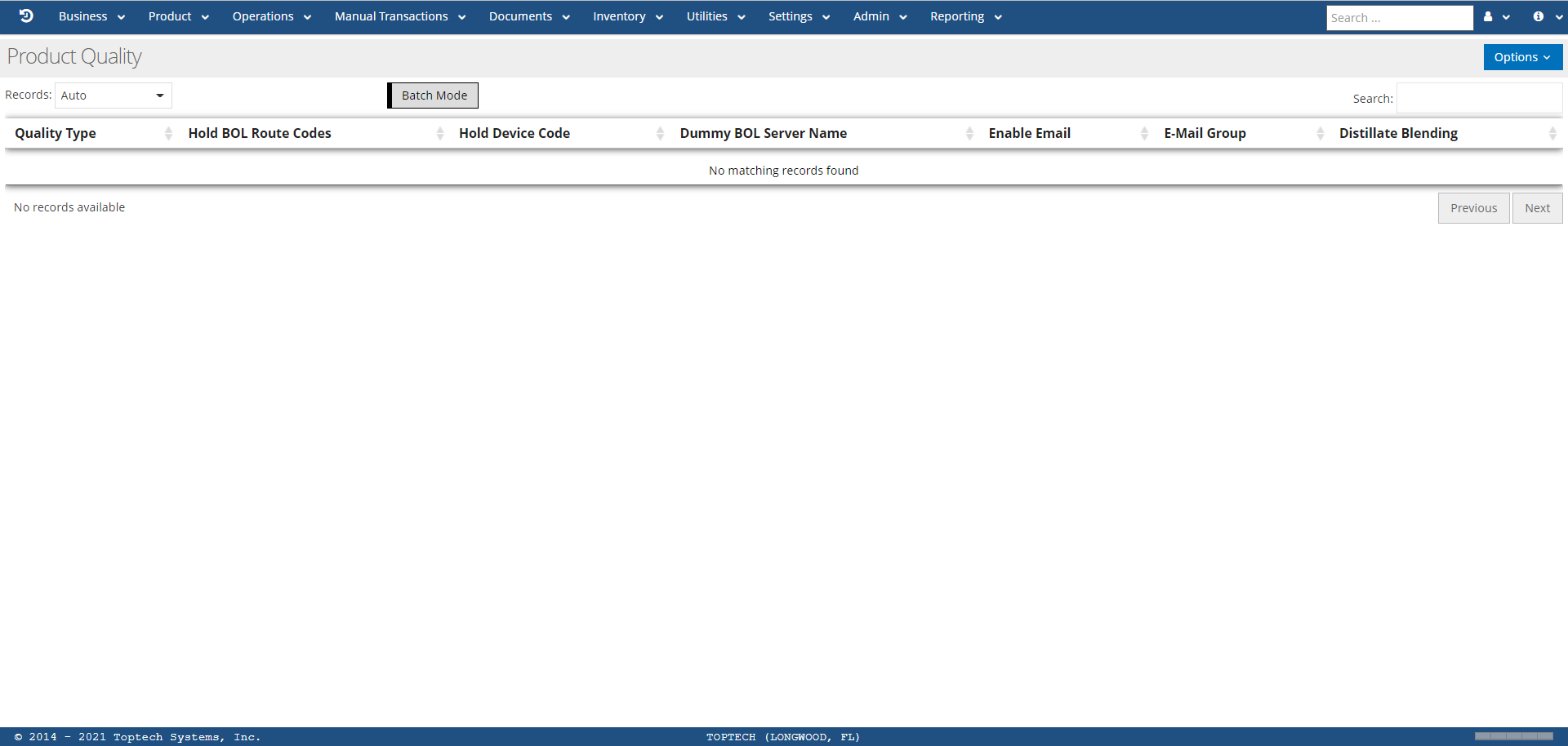
Product Quality: Detail
A user can select any record to view the Product Quality: Detail screen for that record, or select 'New' from the 'Options' menu to create a new product quality type record. A user can configure product quality codes and configurations using the Detail screen.
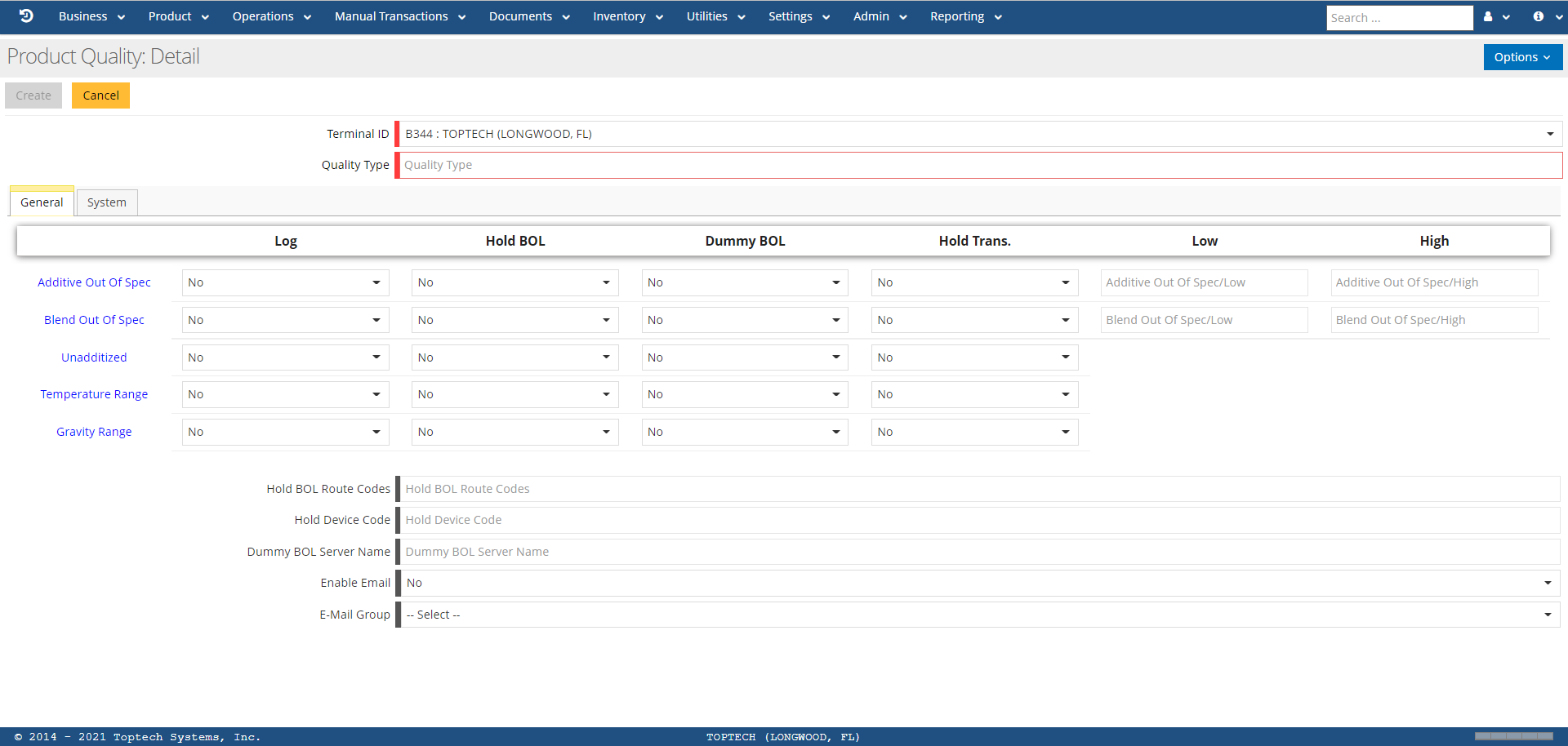
The features of the Product Quality: Detail screen are defined in the table below:
| Feature | Description |
|---|---|
| Options |
The 'Options' menu contains the following features:
|
| Terminal ID | Select a terminal from the drop-down menu. |
| Quality Type | Enter a 2-character code (00-99) to identify this product quality record. Note that once this record has been created the code cannot be changed. |
| Log | If 'Yes' is selected , this indicates the error condition will be logged to the Product Quality Log (PQM) if detected. |
| Hold BOL | If 'Yes' is selected , when the error condition is detected it will route the BOL to a printer other than the BOL Printer(s). |
| Dummy BOL | If 'Yes' is selected , when the error condition is detected it will print on a non-road worthy document. |
| Hold Trans. | If 'Yes' is selected , when the error condition is detected TMS will inhibit transmission of the BOL data to an external system. |
| Low | The lowest percentage (either additive or blend percentages) a product can reach before becoming out of spec with the product recipe. |
| High | The highest percentage (either additive or blend percentages) a product can reach before becoming out of spec with the product recipe. |
| Additive Out Of Spec | Indicates that the additive does not meet one or more required specifications. |
| Blend Out Of Spec | Indicates that the blend does not meet one or more required specifications. |
| Unadditized | Indicates that no additive has been added to this product. |
| Temperature Range | Indicates that this product is not within the specified temperature range. |
| Gravity Range | Indicates that this product is not within the specified gravity range. |
| Hold BOL Route Codes | If the Hold BOL feature is enabled for any of the out of spec conditions, enter a route code for the Hold BOL printer that will be used. |
| Hold Device Code |
Device Code or Type appropriate for output when the Hold BOL option is selected. Options are: 0 – Report 1 – Bill of Lading 2 – Invoice/Bulk Transactions 3 – Maintenance 4 – Document Completion Code |
| Dummy BOL Server Name | If the Dummy BOL option is enabled for any out of spec condition, enter the server name that will be used for Product Quality processing. The default name of the BOL server program for Product Quality processing is PQMBOLF. |
| Enable Email |
If 'Yes' is selected, this indicates that any specified email groups will be notified in the event that an out of spec event/alarm is triggered. If 'No' is selected, no email reports will be sent in the event that an out of spec event/alarm is triggered. |
| E-Mail Group | If the Enable Email field is marked 'Yes,' choose an email group from the drop-down menu. Email groups must first be specified via the Email Groups screen. |